Edit an image with AI
This page explains how to use the AI transformations in Dynamic Asset Transformations (DAT) to remove an image’s background or extend it beyond its original edges. The AI transformations are powered by Adobe Firefly.
Open the AI menu
The AI transformations are in the Edit with AI menu.
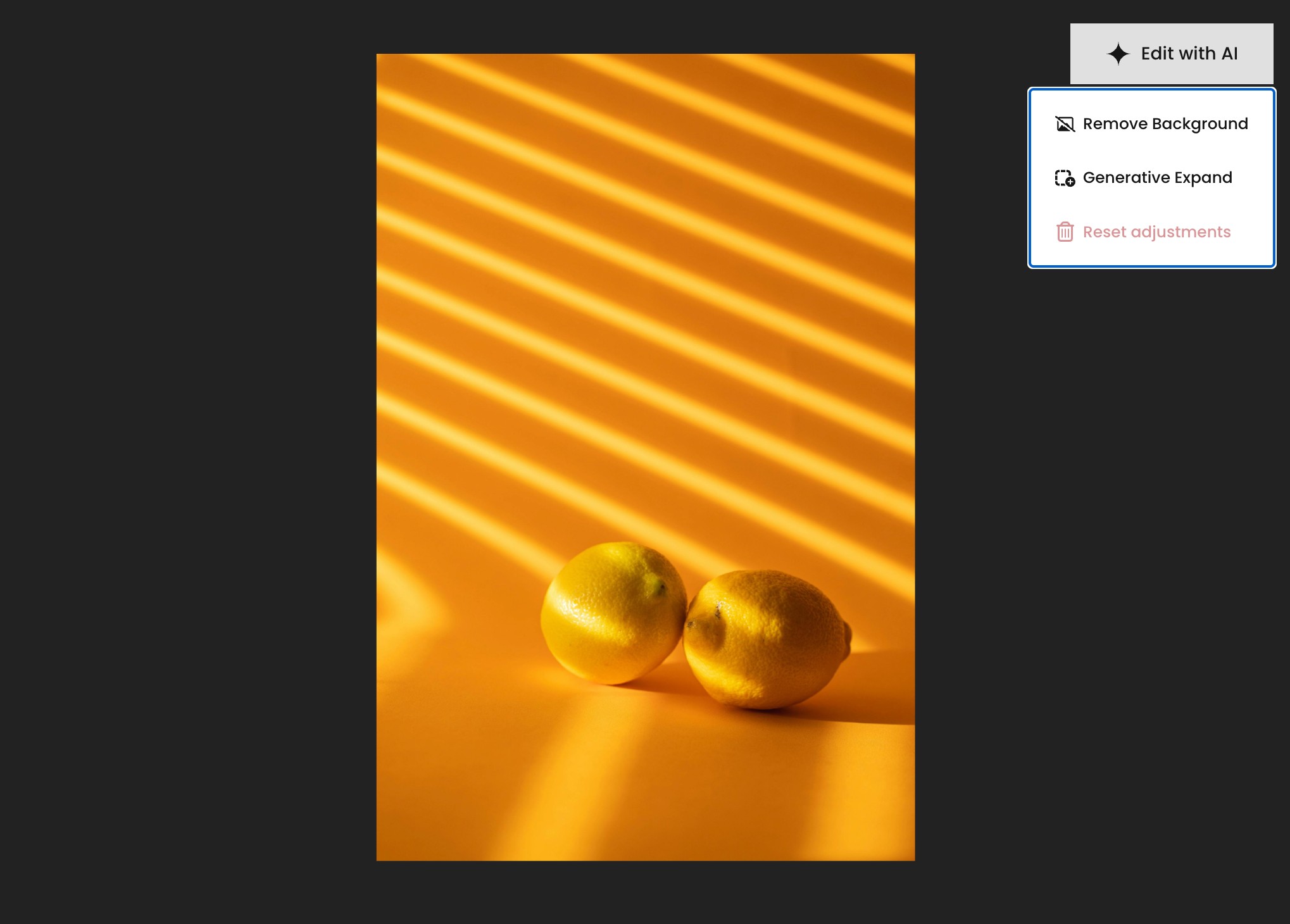
The following transformations are available:
-
Remove Background
-
Generative Expand
The menu also includes Reset Adjustments, which undoes AI transformations you have applied.
Remove the background
-
Open the Edit with AI menu and select Remove Background.
The background is removed, leaving the subject on a transparent background.
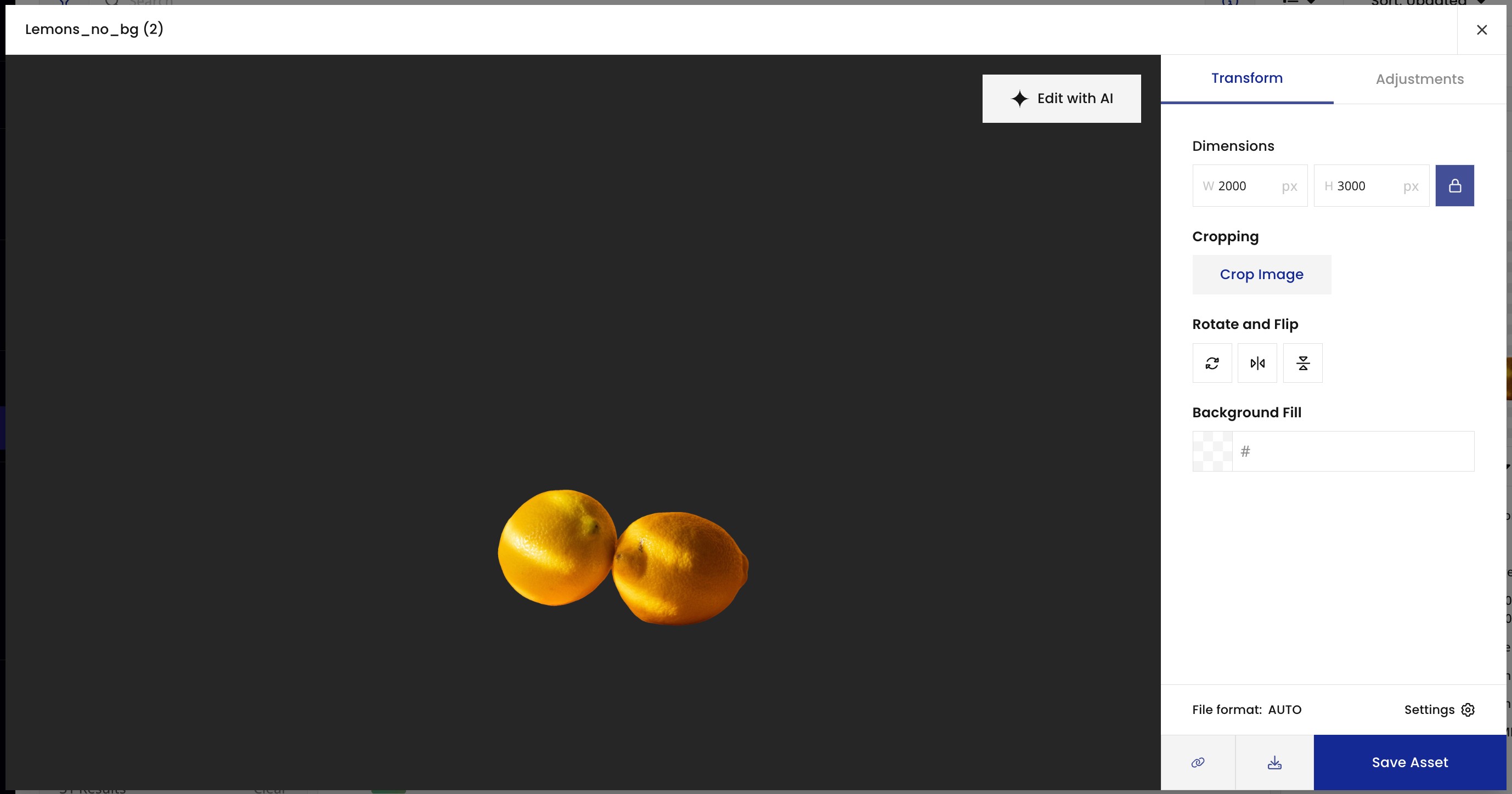
| Removing the background produces a transparent background only when the output format supports transparency, such as PNG or WebP. |
To save a copy of the result, select Download.
Expand an image
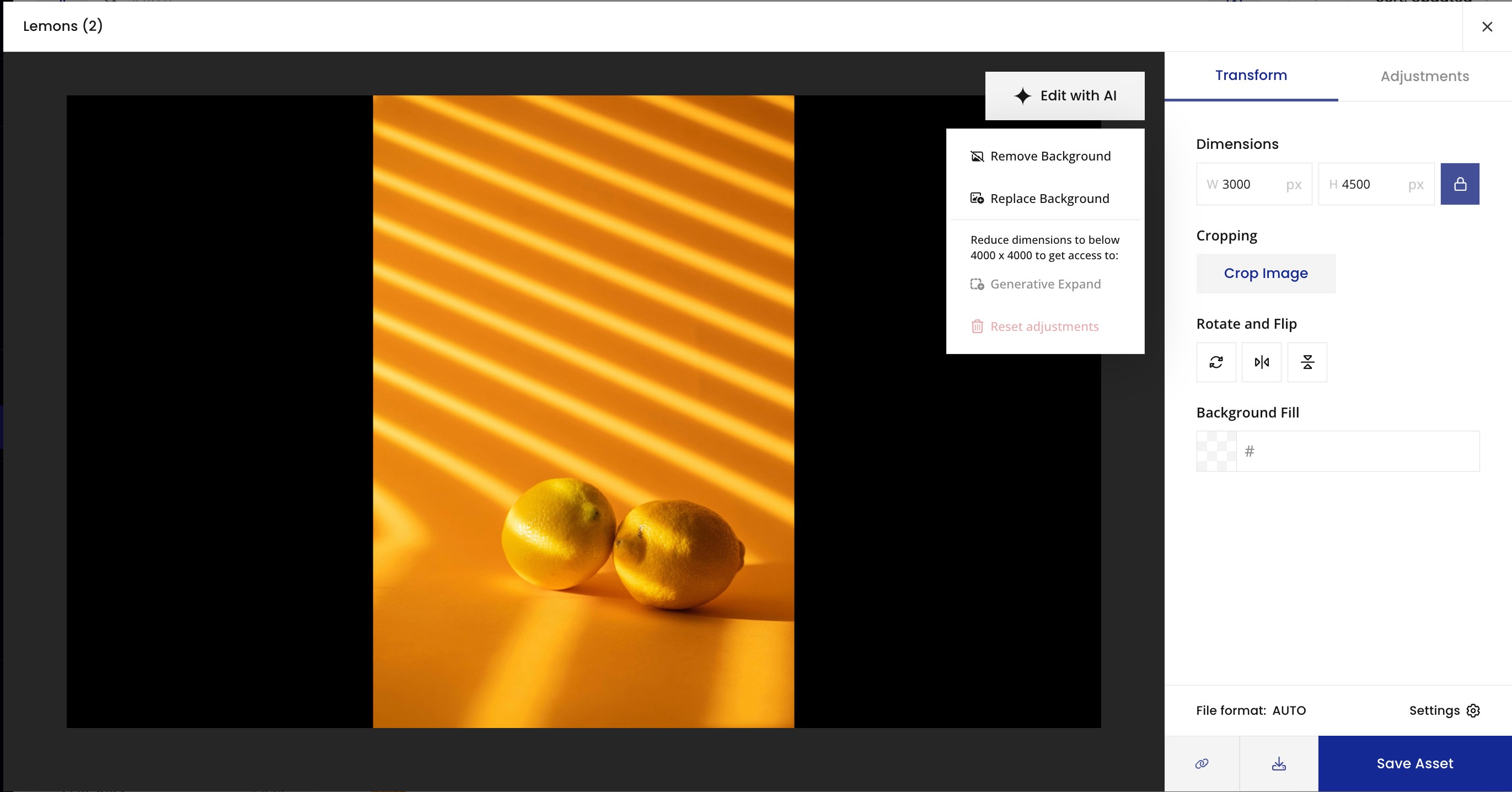
Generative Expand adds AI-generated content around an image to increase its size. It is available only when both the width and height of the image are below 4000 pixels. When either dimension is 4000 pixels or greater, the option is unavailable in the Edit with AI menu.
-
Open the Edit with AI menu and select Generative Expand.
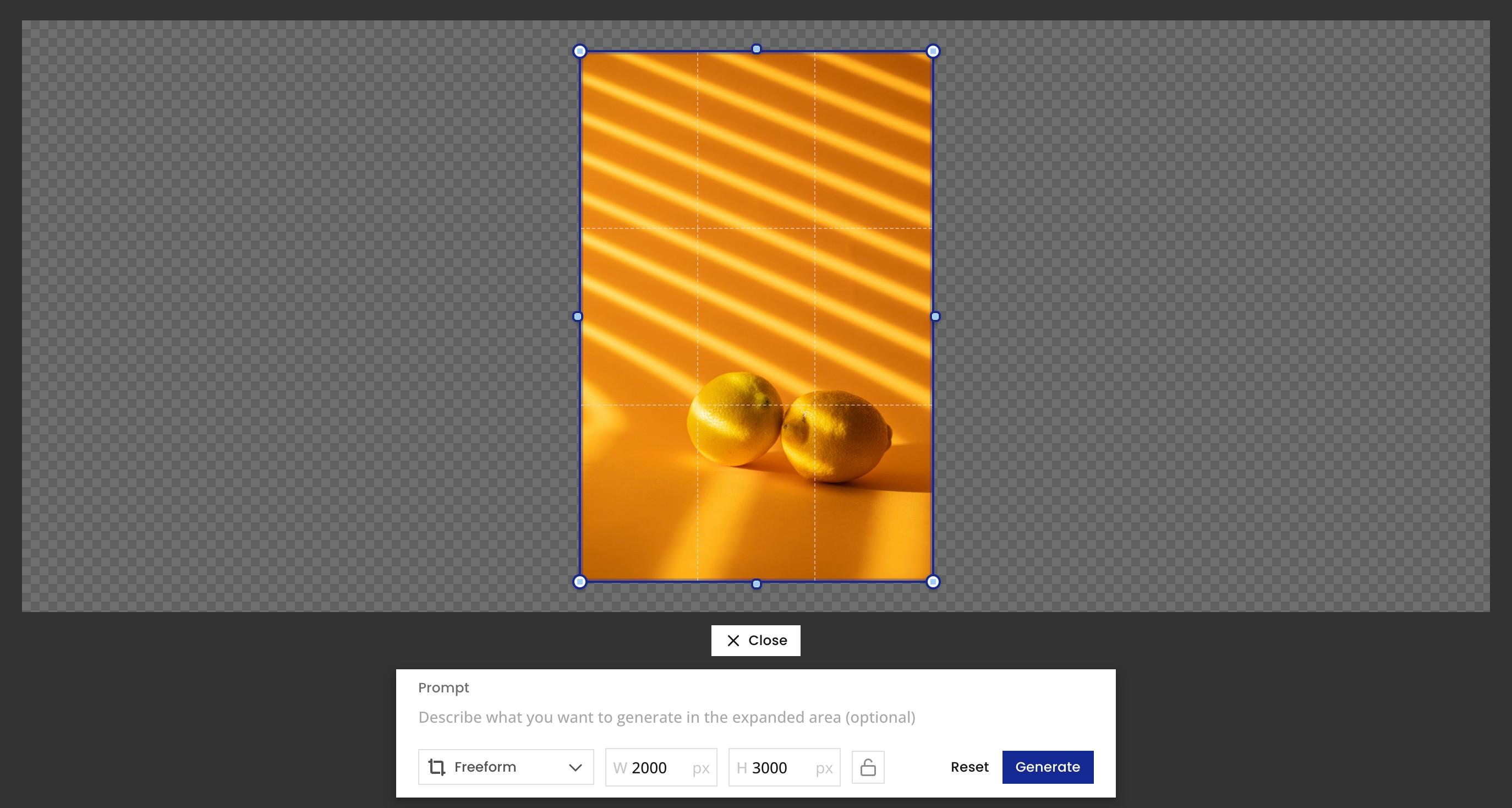
The Generative Expand editor opens.
-
Set the new image size. Drag the handles, enter values in the input boxes, or choose an aspect ratio from the dropdown.
If you set the width or height to 4000 pixels or greater, an error appears. Reduce the value to 3999 or lower to continue. -
Optionally, enter a prompt to add content to the expanded area. If you leave the prompt empty, the existing background is expanded to fill the new size.
-
Select Generate.
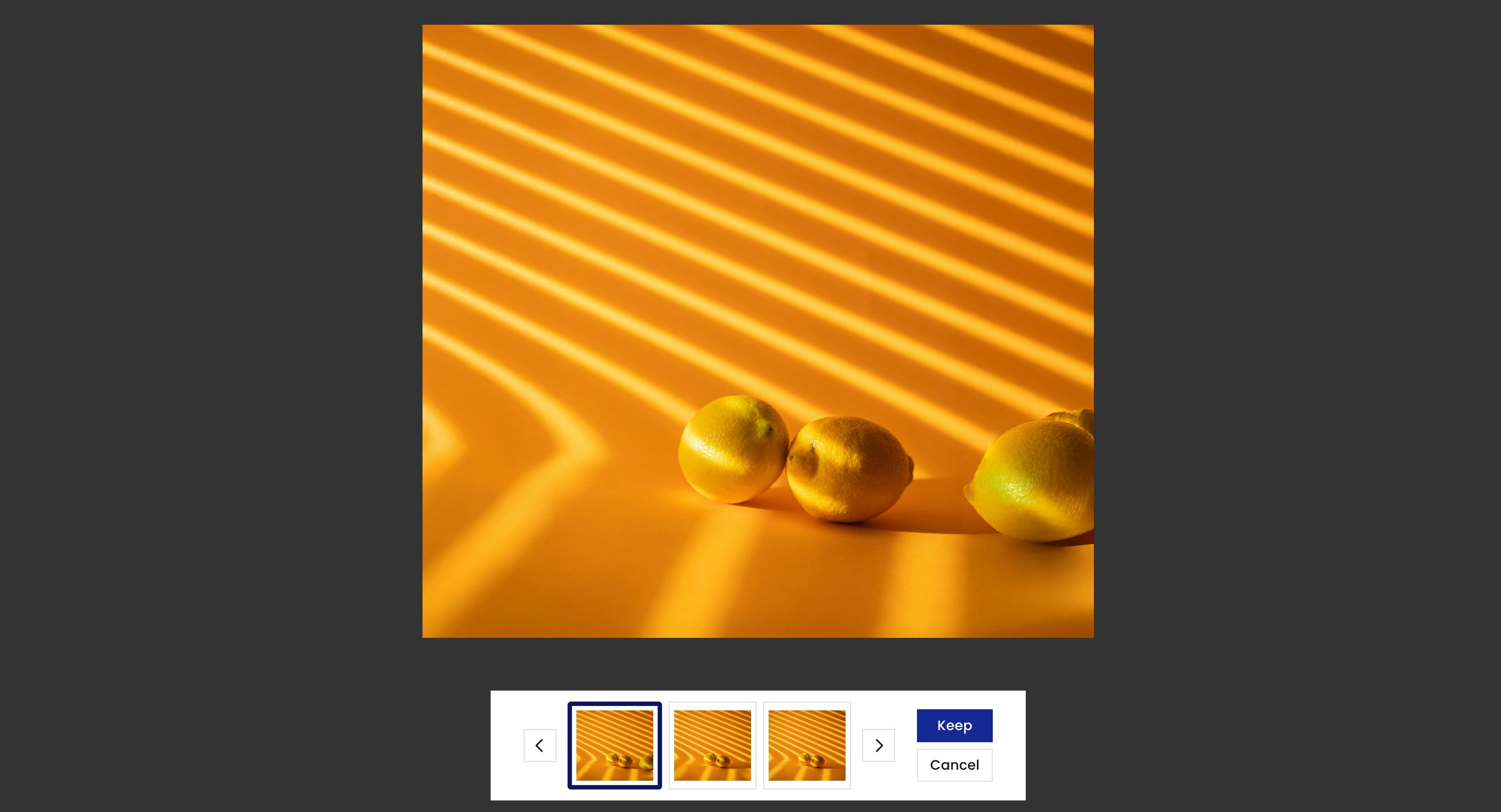
The image and your settings are sent to Adobe Firefly, and new images are generated.
-
Review the generated results, and select Keep on the one you want. To return to the editor without keeping a result, select Cancel.
Selecting Keep returns you to DAT with the new image in the preview panel.
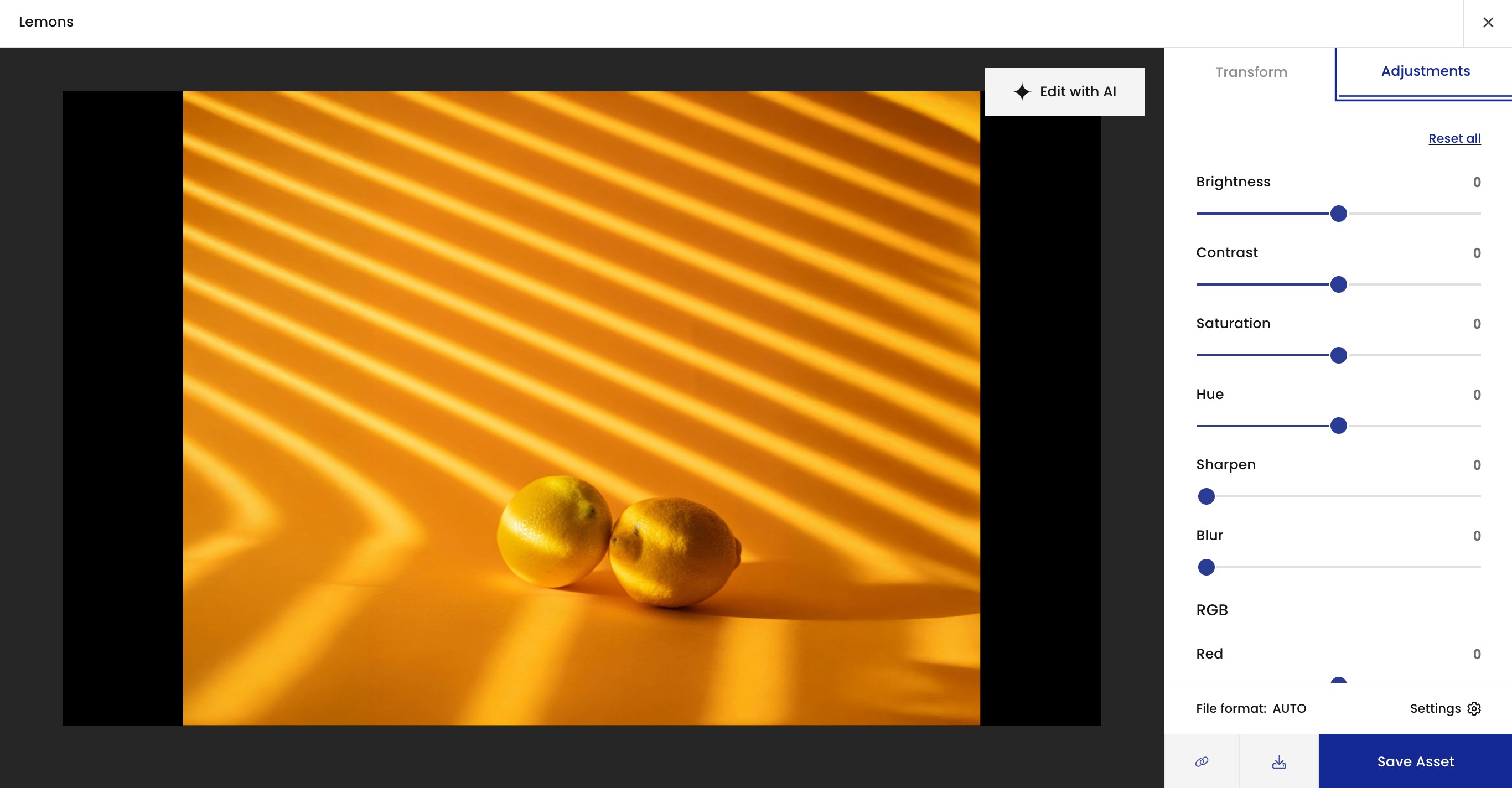
From here, you can download the image or apply standard transformations.
| To reset your changes in the editor, select Reset. To leave the editor without generating, select Close. |